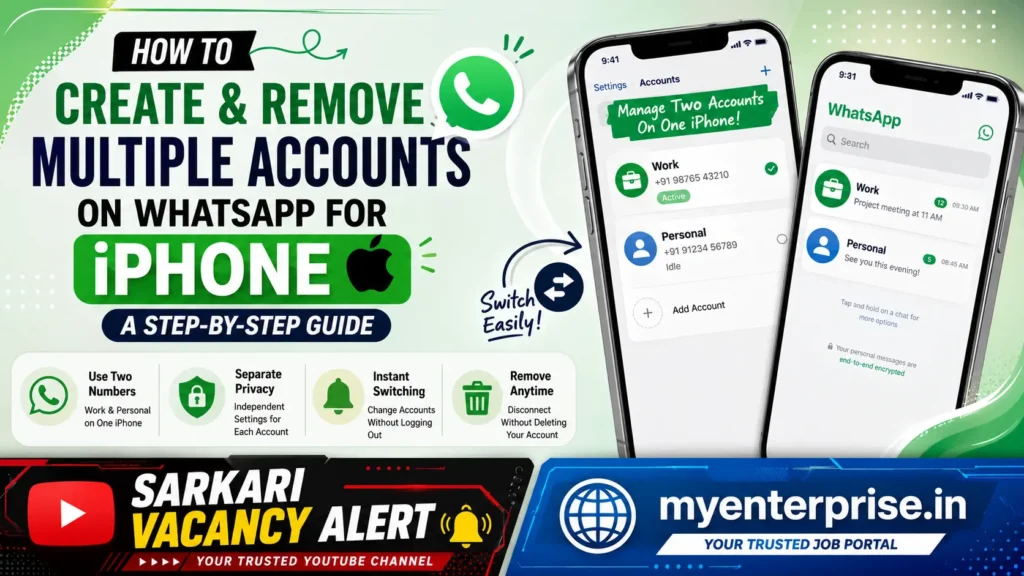

Managing two phone numbers on a single smartphone has become increasingly common. Many users maintain one number for personal communication and another for professional purposes. While iPhones have supported Dual SIM and eSIM functionality for years, running two separate WhatsApp accounts on the same device was not possible without workarounds.

That has finally changed.
WhatsApp has officially introduced support for multiple accounts on iPhone, allowing users to add and manage two different WhatsApp accounts on a single device. This new feature eliminates the need to carry a second smartphone or rely on unofficial applications that may compromise privacy and security.
If you have separate work and personal numbers, this guide explains everything you need to know about setting up, using, and removing multiple WhatsApp accounts on your iPhone.
What Is WhatsApp Multi-Account Feature on iPhone?
The new WhatsApp multi-account feature allows users to access two independent WhatsApp accounts within the same application.
Each account functions separately and maintains its own:
- Chats and conversations
- Profile photo
- About section
- Privacy settings
- Notification preferences
- Groups and channels
Users can switch between accounts without logging out and logging back in every time.
This feature is particularly useful for:
- Business professionals
- Freelancers
- Students managing multiple numbers
- Small business owners
- Content creators
- Users who want to separate personal and work communication
How WhatsApp Dual Accounts Work on iPhone
The multi-account feature allows two WhatsApp accounts to run on the same iPhone.
However, there are some important requirements:
Separate Phone Numbers Required
Each WhatsApp account must be linked to a different mobile number.
You can use:
- Physical SIM card
- eSIM
- Another valid mobile number capable of receiving verification codes
Independent Account Management
Both accounts operate independently.
This means:
- Different chat histories
- Separate contacts
- Unique privacy settings
- Individual profile information
Notifications Continue to Work
Even when one account is inactive, WhatsApp will continue delivering:
- Message notifications
- Voice call alerts
- Video call notifications
This ensures users never miss important conversations from either account.
How to Create a Second WhatsApp Account on iPhone
Follow these simple steps to add another WhatsApp account to your iPhone.
Step 1: Open WhatsApp Settings
Launch WhatsApp and tap the Settings tab located at the bottom of the screen.
Step 2: Tap Add Account
Next to your profile name, tap the Plus (+) icon and select Add Account.
Step 3: Accept Terms and Conditions
Tap Agree and Continue to proceed.
Step 4: Enter New Phone Number
Choose your country code and enter the phone number you want to use for the second WhatsApp account.
Step 5: Verify the Number
WhatsApp will send a six-digit verification code through:
- SMS
- Phone call
Enter the code to verify the account.
Step 6: Set Up Profile
Add your:
- Name
- Profile photo
- About information
You can skip these steps and update them later if desired.
Step 7: Complete Registration
Once verification is complete, WhatsApp will automatically add the second account to your iPhone.
You can now switch between accounts whenever needed.
How to Switch Between WhatsApp Accounts on iPhone
After setting up two accounts:
- Open WhatsApp.
- Tap Settings.
- Select the account you want to use.
- Switch instantly without logging out.
The process is seamless and takes only a few seconds.
What If the Add Account Option Is Missing?
If you cannot see the Add Account option, make sure:
- Your WhatsApp application is updated to the latest version.
- Your iPhone is running a compatible iOS version.
- The feature has been rolled out to your region.
Updating WhatsApp through the App Store usually resolves the issue.
How to Remove a WhatsApp Account From iPhone
If you no longer need a secondary account on your device, you can remove it without permanently deleting the WhatsApp account.
Step 1: Open WhatsApp Settings
Launch WhatsApp and go to:
Settings > Account
Step 2: Select Remove Account
Tap Remove Account.
Step 3: Backup Chats (Optional)
If you want to save your messages before removing the account, choose:
Go to Chat Backup
Step 4: Confirm Mobile Number
Enter the phone number associated with the account.
Step 5: Remove Account
Tap Remove to disconnect the account from the current iPhone.
What Happens After Removing an Account?
Many users mistakenly believe that removing an account deletes it permanently.
In reality:
- The account remains active.
- Groups remain intact.
- Channels remain subscribed.
- Contacts can still message you.
- You can log in again later.
The account is simply disconnected from that particular iPhone.
Important Things to Remember
Before using multiple WhatsApp accounts, keep these points in mind:
Use Valid Mobile Numbers
Each account requires a unique and active phone number.
Avoid Frequent Device Changes
WhatsApp warns that repeatedly moving accounts between devices may trigger security checks and temporary restrictions.
Keep Backup Enabled
Regular backups help protect chat history in case of device loss or account removal.
Enable Two-Step Verification
For better security, activate WhatsApp’s two-step verification feature for both accounts.
Why This Feature Is a Big Upgrade for iPhone Users
For years, Android users enjoyed easier options for running multiple WhatsApp accounts through app cloning and manufacturer features. iPhone users had limited options and often needed a second device.
The introduction of official multi-account support finally brings a seamless and secure solution to iOS users.
Whether you are a professional managing work communications or simply someone who uses separate numbers for different purposes, WhatsApp’s new multi-account feature makes account management easier than ever.